 TrueOffset
Server setup
Your own time servers
TrueOffset looks at a time server in two ways. On every platform, it measures the server from outside. On the Mac, it can also read the record the server keeps of itself. The app's own Help covers the same ground, with the screens beside it.
- Measure a server of your own
- Allow the local network
- What a measurement can tell you
- When every server looks the same
- Keep statistics on the server
- Collect them over SSH (Mac)
- Or open a folder (Mac)
- PTP with linuxptp
- A SecureSync
- A Timebeat clock
- Tie a server to its log
- When something is wrong
- Tuning a time server
Measure a server of your own
Any machine that answers NTP on UDP port 123 can be added: a Raspberry Pi with a GPS receiver, a router, a commercial time appliance, or a server across the internet. A hostname, an IPv4 address, or an IPv6 address all work. On a home network, a name ending in .local is often the easiest.
- Mac: Add Server in the toolbar, or File ▸ Add Server… (Command-N). Give the hostname or address, an optional name, and how often to measure, from every 5 seconds to every 5 minutes. To measure it with NTS, turn on Use Network Time Security (NTS). The server must offer NTS on port 4460, with a certificate the Mac trusts for that name.
- iPhone and iPad: in the NTP tab, Manage Sources, then Add Custom Source.
How often it is asked
The app measures a server you add yourself in bursts of four requests and keeps the reply with the shortest round trip, because it spent the least time on the network. It measures a server from Notable Servers with one request at a time, and no more than once a minute. Those servers belong to someone else, and some, such as NIST's, ask not to be queried more often than once every 4 seconds. Use the short intervals only for servers you run.
The reference
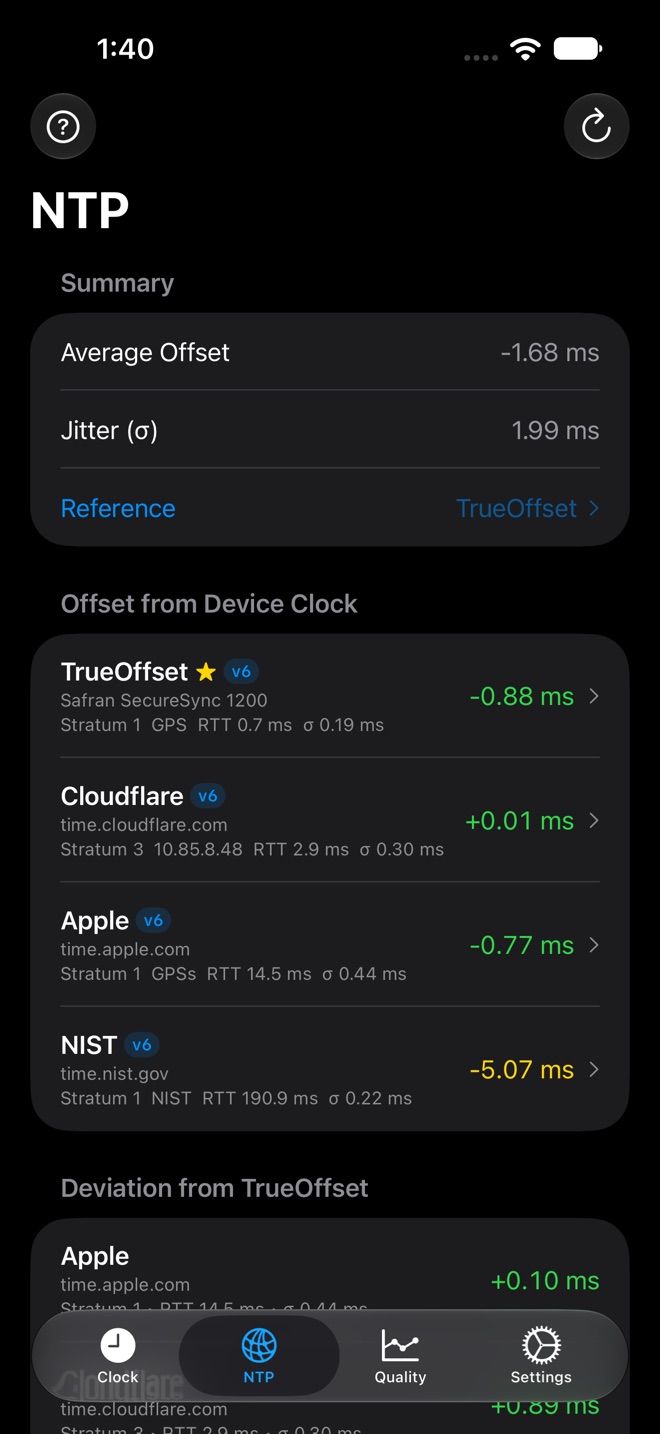
One server is the reference: the clock faces, the time signals, and the comparisons all follow it. On the Mac, make any server the reference with its star in All Servers. On iPhone, swipe it to the right. Your own stratum 1 server on the same network is usually the best choice you have.
Allow the local network
The first time TrueOffset reaches a device on your own network, the system asks whether it may. Without that permission, servers on your network do not answer, while public ones do. On the Mac the same permission covers reading a Timebeat clock's database and collecting logs over SSH. A refusal can look like no connection at all.
- iPhone and iPad: Settings ▸ Privacy & Security ▸ Local Network ▸ TrueOffset.
- Mac: System Settings ▸ Privacy & Security ▸ Local Network ▸ TrueOffset.
A name ending in .local is always on the local network. If a local server shows as not answering and a public one is fine, check this switch first.
What a measurement can tell you
An offset measured from a phone or a Mac carries that device's own clock error and the network in between, and over Wi-Fi those are usually thousands of times larger than anything wrong with a good server. A GPS-disciplined server is right to within microseconds. Wi-Fi alone wanders by milliseconds. So a single offset says more about your device than about the server.
- Compare with a server, not the device. When two servers are measured at the same moment, your device's error is the same in both answers and cancels. On the Mac, set the Quality screen's Compared with to a server.
- Read the server's own log. The server knows how far its clock is from the reference it follows far better than anything asking over the network. That is what the Mac's Server Logs are for.
To check your network rather than the server, use the IPv4 and IPv6 comparison: one request over each address family, set side by side. If the two answers describe different machines, the name resolves differently on each, or something in between is answering for it.
When every server looks the same
Some routers and networks redirect every NTP request to a time server of their own, whatever server was asked. Everything still appears to work, but every offset you see is that one server's.
The Mac app watches for it. When three or more servers, reached over the same address family, reply with the same stratum, precision, reference, root delay, and root dispersion, the Overview says they are “answering as one server”. Two alike are not flagged, since two appliances of one model can honestly match. IPv4 and IPv6 are judged separately, because redirects are usually set for one and not the other.
If you run the network, exempt the device from the redirect rule, or measure over the address family that is not redirected. To set up such a redirect yourself, see Every device on your own servers.
Mac
Keep statistics on the server
A time server keeps no record of itself unless told to. From NTPsec or ntpd, Server Logs reads loopstats (the clock against its reference), peerstats (each source), and sysstats (requests answered). From chrony, it reads tracking.log, measurements.log, statistics.log, refclocks.log, and tempcomp.log. Each daemon needs a few lines in its configuration and a restart.
NTPsec or ntpd
On Debian, Ubuntu, and Raspberry Pi OS, NTPsec reads /etc/ntpsec/ntp.conf and then the files in /etc/ntpsec/ntp.d; the older ntpd reads /etc/ntp.conf. Debian's ntpsec-ntpviz package turns statistics on by itself, with a file in ntp.d. Otherwise add:
statsdir /var/log/ntpsec/
statistics loopstats peerstats sysstats
filegen loopstats file loopstats type day enable
filegen peerstats file peerstats type day enable
filegen sysstats file sysstats type day enable
type day starts a new file each day, named for it (loopstats.20261014). The folder must exist and be writable by the account the daemon runs as. Then restart the daemon with sudo systemctl restart ntpsec, or for ntpd the name its service has, often ntp. NTPsec's ntplogtemp and ntploggps write files named temps and gpsd. Kept in the same folder, they fill the Environment tab and the GNSS tab's satellite counts.
chrony
Debian's chrony reads /etc/chrony/chrony.conf and the files in /etc/chrony/conf.d; other systems often use /etc/chrony.conf. Add:
logdir /var/log/chrony
log tracking measurements statistics refclocks tempcomp
tempcomp.log is written only when a tempcomp line names a temperature sensor. With every coefficient zero it records the temperature and changes nothing. On a Raspberry Pi:
tempcomp /sys/class/thermal/thermal_zone0/temp 30 0 0 0 0Restart with sudo systemctl restart chrony (on Fedora and Red Hat, chronyd). chrony writes one file of each kind and leaves rotating them to another tool, such as logrotate. When it collects over SSH, the app keeps each day itself. In a folder you open, it reads the file in progress and older files named with their day, such as tracking.log.20261014, and skips numbered copies (.1) and compressed ones (.gz). To name them that way with logrotate, use dateext with dateformat .%Y%m%d and nocompress.
Optional: a minute of gpsd each hour
For the sky plot and the constellations, keep a minute of gpsd's reports each hour, without position reports, in a folder named gpspipe beside the statistics folder. Collecting over SSH can do this for you with a switch. By hand, use this crontab line, with your server's name in the file name:
0 * * * * gpspipe -w -x 60 | grep -E '^\{"class":"(SKY|VERSION|DEVICES?|WATCH|PPS)"' > /var/log/gpspipe/gpspipe_timeserver_$(date -u +\%Y\%m\%d\%H\%M).jsonStatistics files grow every day. Make sure the disk has room, or that something removes old days.
Mac
Collect them over SSH
TrueOffset can fetch a server's files itself. Every hour while it runs, even with its window closed, it logs in over SSH, reads the log files by SFTP, and copies whatever they have added since the last time. It writes nothing on the server.
- In Server Logs, choose Collect from a Server… from the Add menu, or click it on the empty screen when nothing is open yet.
- Fill in the Address, Port, and Account, and a Name to show in Server Logs if you like.
- Under Logging In, keep This App's Own Key, or choose A Password, which is kept in the Mac's keychain.
- Choose What the Key Can Do. Copy the command shown, paste it into Terminal on the Mac, and press Return. It logs in, asks for the account's password and, where needed, for sudo's, then puts the public key in place, replacing any earlier line for the same key.
- Turn on any switches under Also Read, by Running a Command, and click Connect and Add.
What the key can do
- The account as it is: the key can do whatever the account can. The simplest, and the most exposed.
- Reading files only: the key can read any file the account can read, over SFTP, but cannot run a command, open a shell, or change a file.
- The log folders only: an account of its own,
trueoffset, with no password and no shell, confined to/var/log, where it can only read. An administrator account sets it up; then puttrueoffsetin Account. SSH requires/var/logto belong to root and be writable by root alone. Ubuntu's is not, so on Ubuntu choose Reading files only.
With either of the last two, the switches that run commands do not work.
The switches
Each runs exactly the command shown beside it: a description of the machine once a day; the u-blox receiver's settings once a day, through ubxtool, with read-only questions; linuxptp's lines from the system journal; and a minute of gpsd's reports each hour, with position reports dropped on the server unless you turn on Keep its position fixes. The first two can be turned on or off later in Your Servers.
Afterwards
Fetch Now and Fetch All Now fetch at once. The app keeps the raw files on the Mac for 90 days, then removes them. The day summaries stay, so long spans still chart. Stop… offers to keep or remove what was copied. Either way, nothing on the server changes. The app looks for the log folders once, when you add the server. If you later turn statistics on in another place, or move them, click Stop…, keep what was copied, and add the server again.
Mac
Or open a folder
If the files already reach your Mac some other way, open them: in Server Logs, choose Open a Folder… from the Add menu (or File ▸ Open Log Folder…, Command-O), or drag the folder onto the window. It can be one server's statistics folder or a folder holding one folder for each server. A server takes its folder's name, except that a folder called ntpstats or chrony takes the name of the folder it is in. The app only reads, and never changes or deletes a file.
A layout that holds everything for two servers:
timeservers/
  ntp1/
    ntpstats/   loopstats.20261012  peerstats.20261012  loopstats  peerstats  temps
    gpspipe/    gpspipe_ntp1_202610121900.json  ...
  ntp2/
    chrony/     tracking.log  measurements.log  statistics.log
    ptp/        ptp4l.log.20261014  phc2sys.log.20261014
Open timeservers and both appear. A server that changed from ntpd to chrony can have both. Whatever is in the folder each time the app looks is what it charts, so a copy job keeps it current. If a server's log hasn't been written for two hours, its page says so.
With two or more servers open, Compare the Fleet (Shift-Command-F) sets their views of one another side by side.
PTP with linuxptp
ptp4l and phc2sys keep no files: they write to the system journal. When collecting over SSH, turn on linuxptp's lines, from the system journal. The app reads every unit whose name begins with ptp4l or phc2sys: a week back the first time and from where it stopped after that. It needs a key that may run commands and an account allowed to read the journal, such as a member of the systemd-journal or adm group.
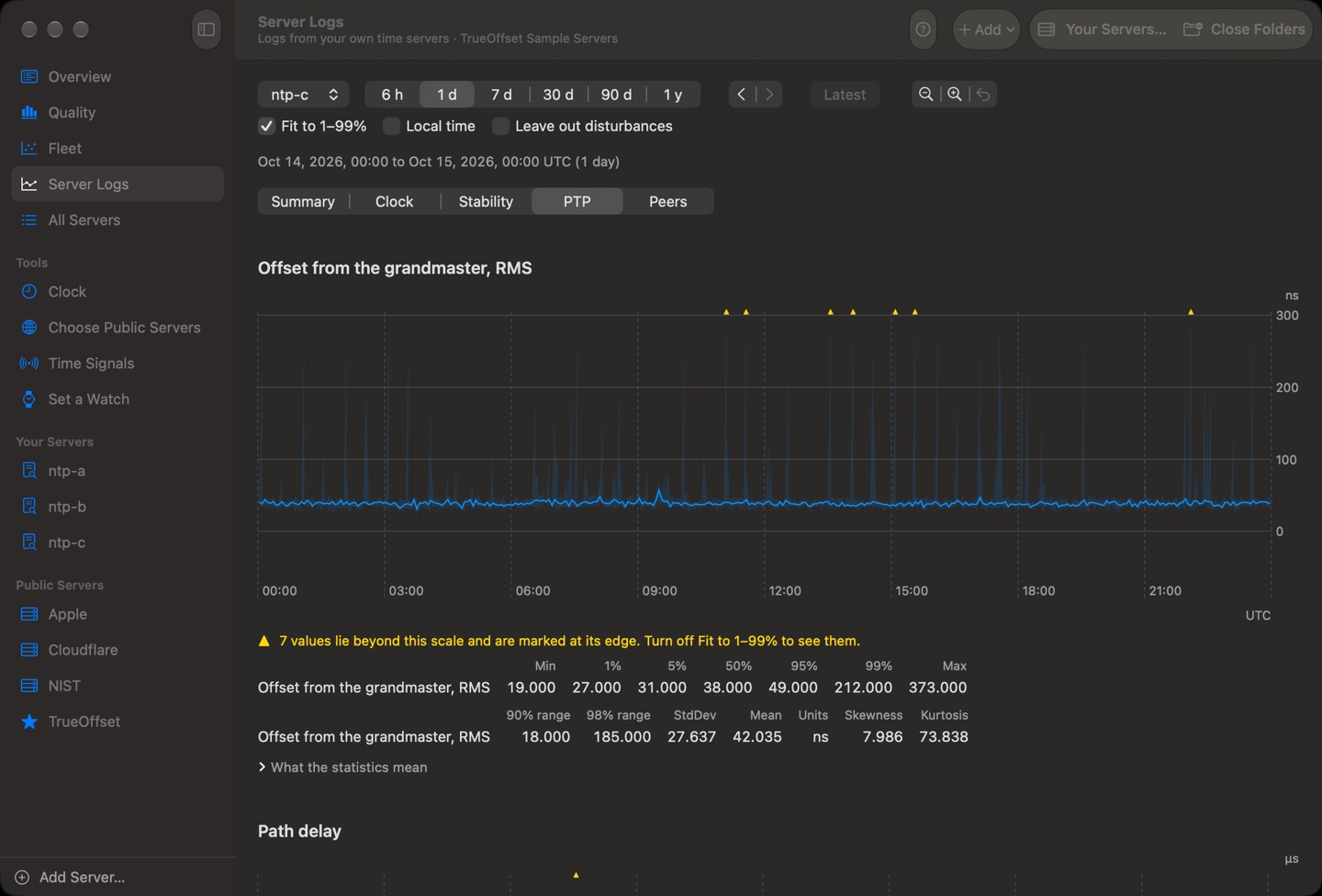
In a folder, put files named ptp4l.log.20261014 and phc2sys.log.20261014 in a folder named ptp beside the statistics folder, each line as journalctl --utc -o short-iso-precise prints it:
2026-10-14T00:21:47.270622+00:00 timeserver ptp4l[1484]: [2298821.085] rms 44 max 94 freq -5468 +/- 39 delay 3380 +/- 8Only lines written once the servo has locked are counted. Where phc2sys alone keeps a machine's time, with no ntpd or chrony log, its phc2sys lines become its clock log, and Follows says PTP. The system clock can be set against the card's no more finely than one reading of the card's clock takes: about half a microsecond on a card built for it, and milliseconds on some.
A SecureSync
When collecting over SSH from a Spectracom or Safran SecureSync, the app reads ntpd's files from /home/spectracom/log/ntpstats and the unit's own logs from /home/spectracom/log: osc.log for the Oscillator tab, events.log for its alarms, ntp.log for client requests, and qual.log for satellites. Mark a fault you already know about with I Know. It stays listed, quietly, and is flagged again only if it comes more than twice as often.
A SecureSync keeps its accounts' keys itself, and its authorized_keys cannot be changed from its shell, so the commands in Add a Server will not work there. Open The Public Key in that sheet, copy it, and add it through the unit's own management, as its manual describes. Then add the server with the unit's account.
A Timebeat clock
A Timebeat clock keeps its records, a line a second for each source it listens to and each clock it adjusts, in an Elasticsearch database, on the clock itself or on another machine. In Server Logs, choose Add a Timebeat Database… from the Add menu and give the address of that database, not of the clock. Port 9200 is assumed. The clock is listed under the name its records give it.
TrueOffset only searches the database, and never changes or copies anything. Because that database answers without encryption, macOS lets the app reach it only at a numeric address, a short name with no dots, or a name ending in .local. The Mac must also allow TrueOffset on the local network. Its figures are whole nanoseconds, percentiles are the database's estimates, and spans longer than two days are drawn from whole days kept on the Mac.
Tie a server to its log
When a server you measure is also a server whose log is open, its page draws on both: this Mac's measurements, and the server's own judgment of its clock, on one scale.
The two are matched by name: the server's label, its hostname, or the first part of its hostname must be the log's server name. A server measured as ntp1.example.com matches a folder called ntp1. Where the names differ, choose the log by hand from Its Own Log in the toolbar of the server's page. If a server is both collected and opened from a folder, the collected copy is listed as “(direct)” and the Overview follows it.
The two lines will not sit on top of each other, and should not: they measure different things. See What a measurement can tell you.
A server TrueOffset doesn't read yet
Run a time server or appliance TrueOffset doesn't read yet? Send us what it records, and we'll look at adding it. Write to [email protected] with:
- What it is: the make and model, its software and version, and its receiver and oscillator if you know them.
- A day or more of its logs, as they are, and where on the unit they're kept: the folder, the file names, and how often they're replaced.
- How to log in to read them: whether it takes an SSH key, where the key goes (an
authorized_keysfile, or the unit's own web page), which account to use, and whether that account can run commands. - Any status command it has, with what it prints. Or a status page or API, with an example of what it returns.
- Which values matter most to you.
Take out anything you'd rather not share first, such as the antenna's position or a serial number. We use what you send only to add support for that server, and don't publish it.
When something is wrong
“Found no log files”
Collecting looks first in the folder the daemon's configuration names: statsdir in /etc/ntpsec/ntp.conf, /etc/ntp.conf, or /usr/local/etc/ntp.conf, or logdir in /etc/chrony/chrony.conf, /etc/chrony.conf, or /usr/local/etc/chrony.conf, along with their ntp.d and conf.d folders. Then it looks in the usual places, such as /var/log/ntpsec, /var/log/ntpstats, /var/log/ntp, and /var/log/chrony. Check that the server keeps statistics at all, that the files have the daemon's own names, and that the key is allowed to read them: with The log folders only, nothing outside /var/log is visible, and neither is the configuration in /etc.
A folder the account cannot read
On Debian and Raspberry Pi OS, /var/log/chrony may be opened only by root and the _chrony group. Add the account to the folder's group, with your account in place of pi, and click Fetch Now:
sudo usermod -aG "$(stat -c %G /var/log/chrony)" piThe commands Add a Server gives already do this when chrony's folder is closed to the account.
The keychain asks for TrueOffset's key
After an update macOS may ask whether TrueOffset may use its key, kept under “TrueOffset log collection”. Type your login password and choose Always Allow. If you deny it, nothing is lost: the app makes a new key only when the keychain says it has none, never when the keychain refuses or fails, because every server that knows the old key would turn a new one away. Choose Fetch Now in the Collect sheet and allow it this time.
A server's key changed
Before it logs in to a server for the first time, the app shows the key the server offers and waits for you to compare it with the server's own. After that, it fetches nothing if a different key is offered. Trust a new key only when you know why it changed, and only after comparing the fingerprint Your Servers shows with the server's own, read at its console:
for f in /etc/ssh/ssh_host_*_key.pub; do ssh-keygen -lf "$f"; doneIf you do not know why the key changed, do not trust it. Another machine may be answering at that address, pretending to be your server.
When the server itself is the problem
A pulse that stops, a serial line that's too slow, a card that hangs: Tuning a time server has what we have measured on our own servers, each with a read-only check.
Still stuck?
Write to [email protected]. Say which server software you run and what the app shows.